 MyDet Help
👋Start here
MyDet puts short tests on cadets' own phones. Your HQ chooses the tests, every detachment gets its own QR code, cadets scan it and take the test, and the results come straight back to the right instructors.
- HQ builds a test — questions, pass mark, star level and subject.
- HQ ticks which detachments get it. Each one gets its own QR code straight away.
- The detachment prints the QR poster or shares the link.
- Cadets scan and take the test on any phone. No app, no login.
- Results go to that detachment, its Company HQ and County HQ — nobody else.
| You are… | You log in as | Read |
|---|---|---|
| A detachment instructor | Detachment | Logging in, Your QR codes, What cadets see, Results |
| Company HQ | Company HQ | All of the above, plus Building a test and Choosing detachments |
| County HQ | County HQ | Everything, including Running the county and Logins & roles |
🔐Logging in
Go to mydet.org.uk and log in with the username and password your HQ gave you. MyDet then asks where you want to go.
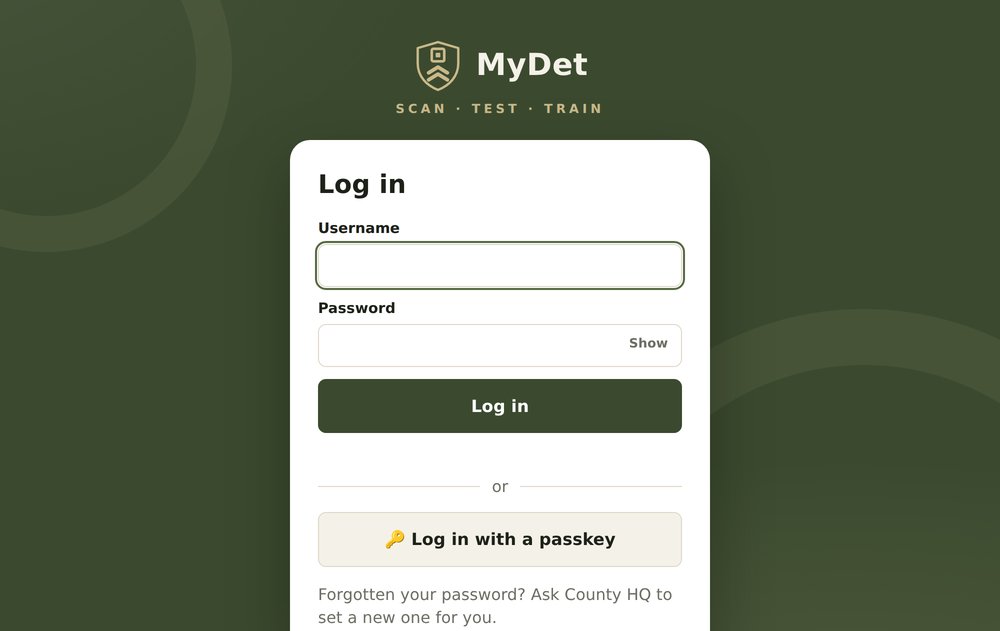
Your first login
- Log in with the temporary password County HQ gave you.
- MyDet asks you to choose your own password. Type your new one twice.
- Press Save and carry on, then choose where to go.
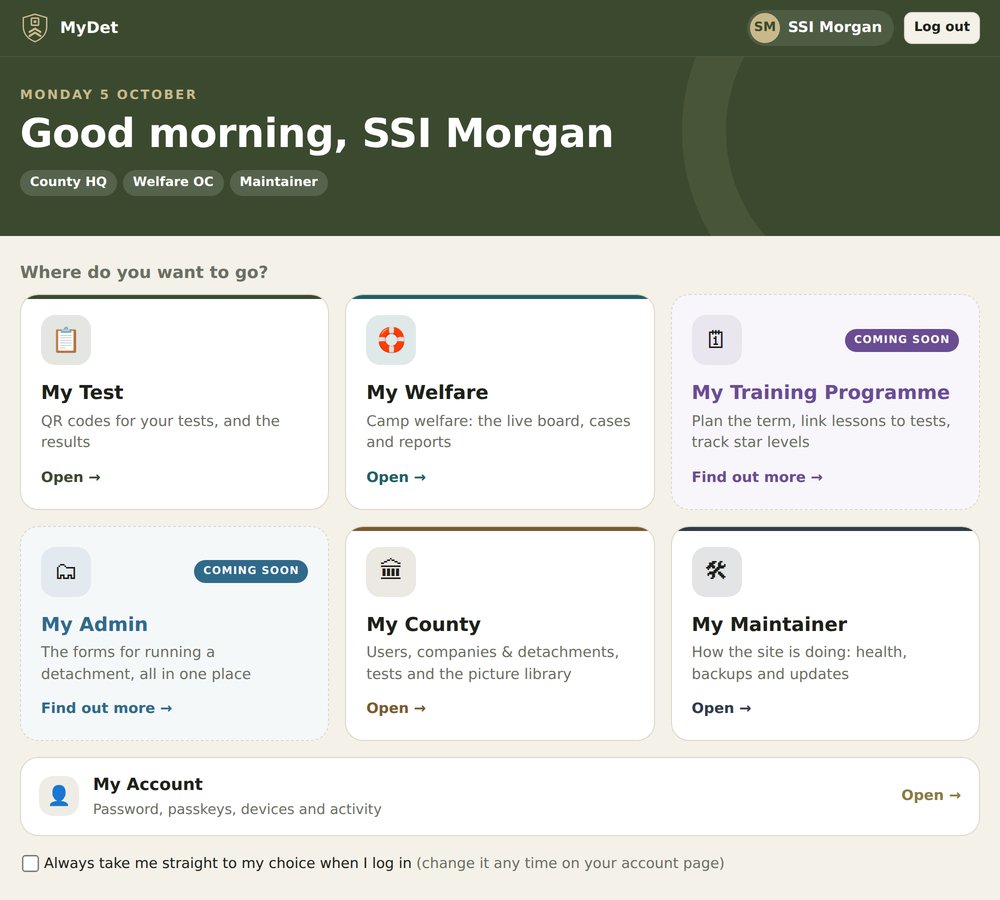
Where do you want to go?
After you log in, MyDet shows a tile for each part your login can use:
- My Test — QR codes and results.
- My Welfare — camp welfare.
- My Training Programme and My Admin (the forms for running a detachment) — both coming soon.
- My County — users, companies & detachments, tests and the picture library.
- My Company — your company's tests, picture library and overview.
- My Maintainer — how the site is doing.
- My Account — your password, passkeys, devices and activity.
Tick Always take me straight to my choice to skip this screen next time. The ⌂ Home button at the top of every page brings you back here.
Your account page
My account shows your login and role, where MyDet takes you after you log in, your password (and when it's next due), your passkeys, the devices you're logged in on — log out any you don't recognise, or all of them at once — and what you've done.
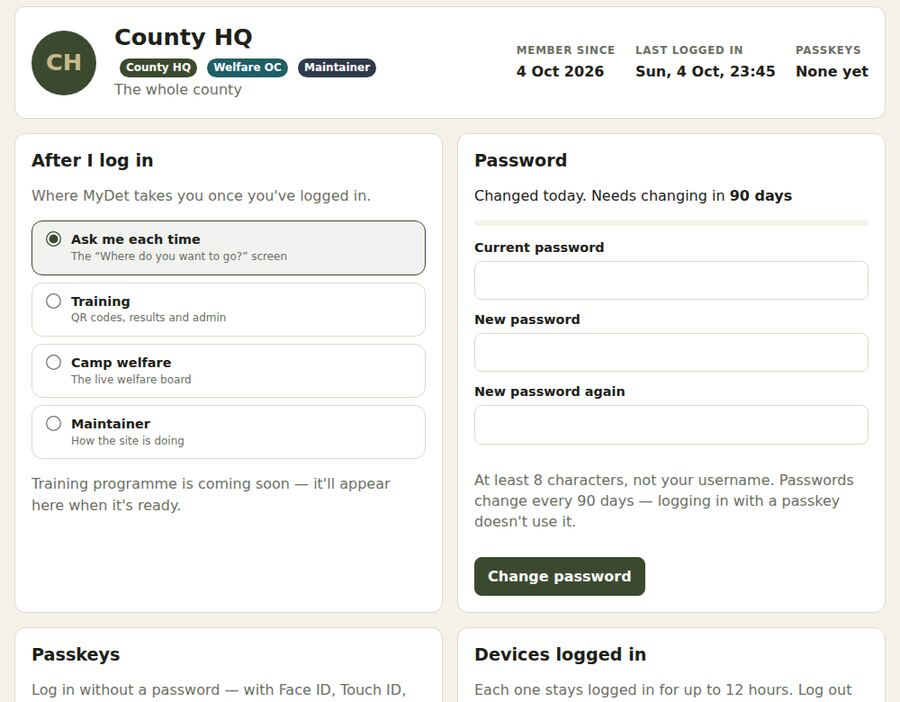
Changing your password every 90 days
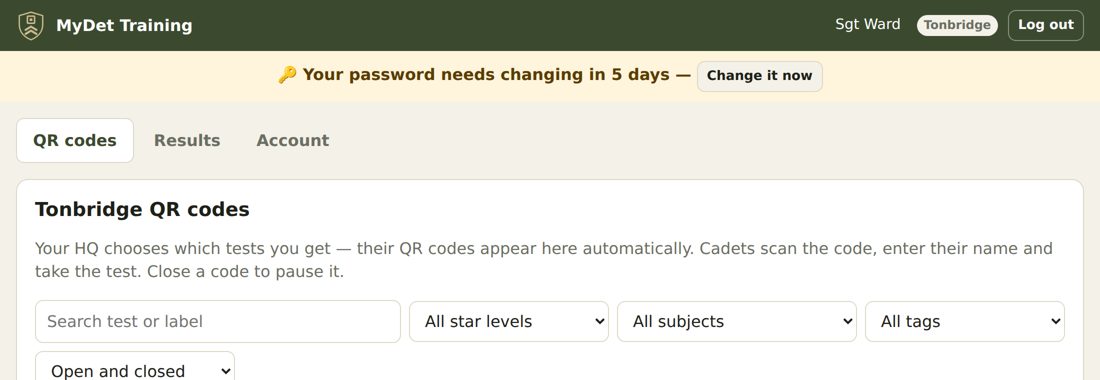
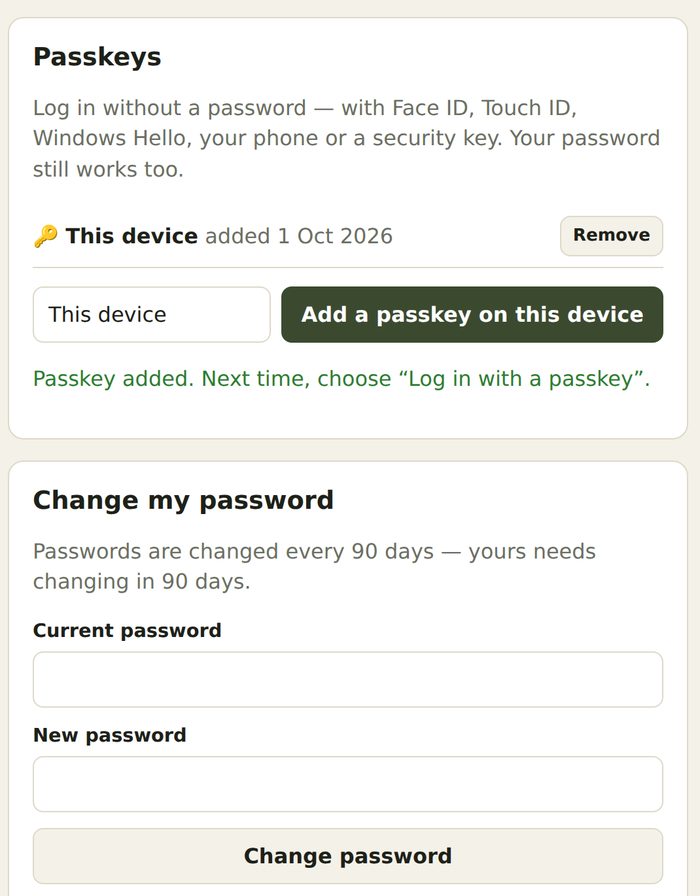
Passwords are changed every 90 days. A yellow bar appears a week before; tap Change it now, or change it any time under Account. When the 90 days are up, MyDet asks for a new password at your next password login.
Passkeys — log in without a password
A passkey lets you log in with Face ID, Touch ID, Windows Hello, your phone's screen lock or a security key — nothing to type, and nothing anyone can phish.
- Log in as normal and open Account.
- Under Passkeys, give this device a name (e.g. “iPhone”) and press Add a passkey on this device.
- Confirm with your face, fingerprint or PIN.
- Next time, press 🔑 Log in with a passkey.
🏛Who sees what
MyDet has three levels. Each one sees its own share and nothing more.
| County HQ | Company HQ | Detachment | |
|---|---|---|---|
| Build tests | For the whole county, or one company | For its own company | — |
| Use County tests | Yes | Use and copy (not change) | When given them |
| Choose who gets a test | Any detachment | Its own detachments | — |
| QR codes | All | Its detachments' | Its own |
| Results | All | Its detachments' | Its own |
| Companies, detachments, logins | Yes | — | — |
A company's own tests are only ever seen by that company's HQ and detachments. Detachments never see the answers.
▦Your QR codes
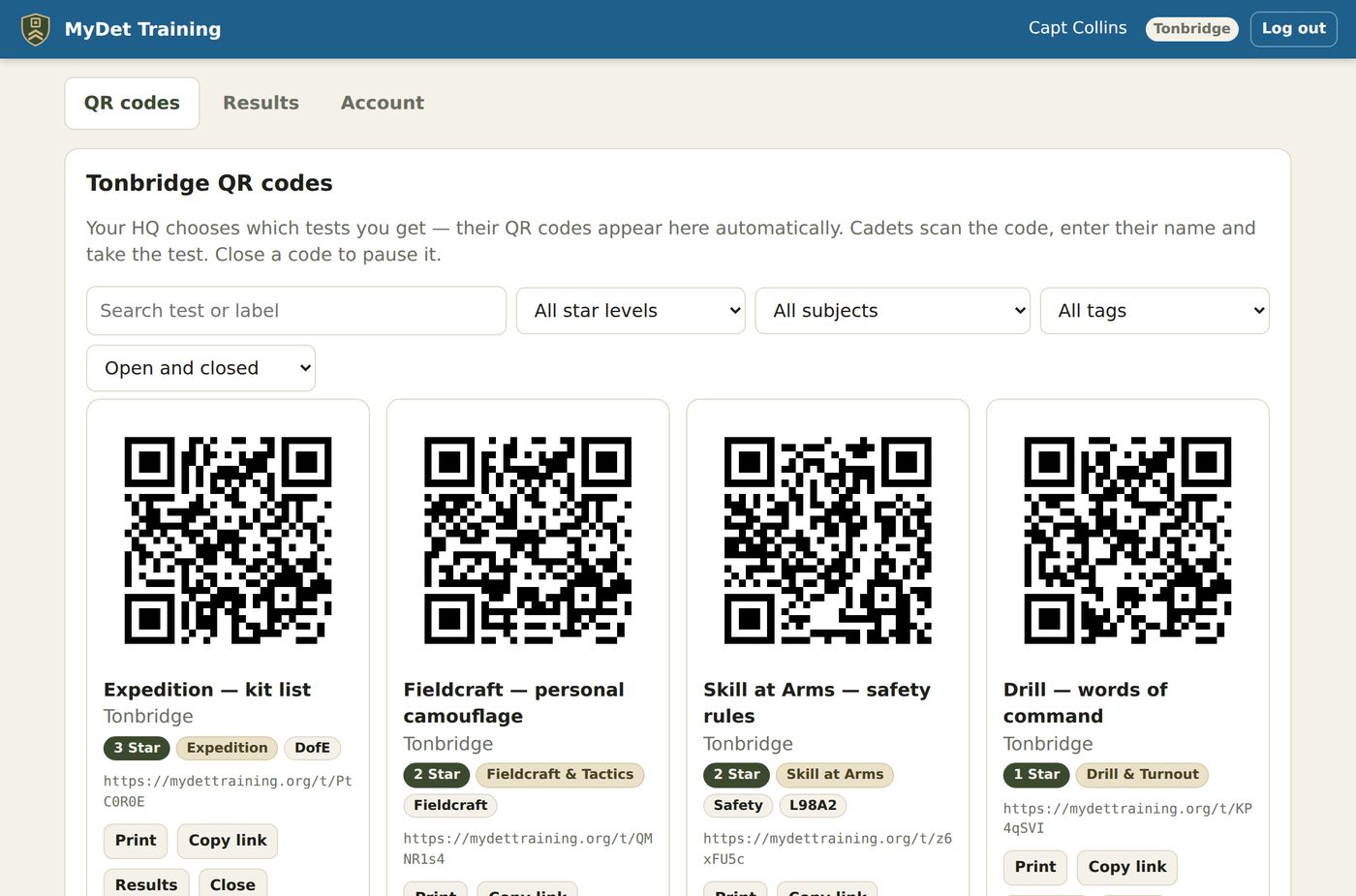
The QR codes tab shows a code for every test your HQ has given your detachment. One QR code is always one test for one detachment, so every result lands in the right place.
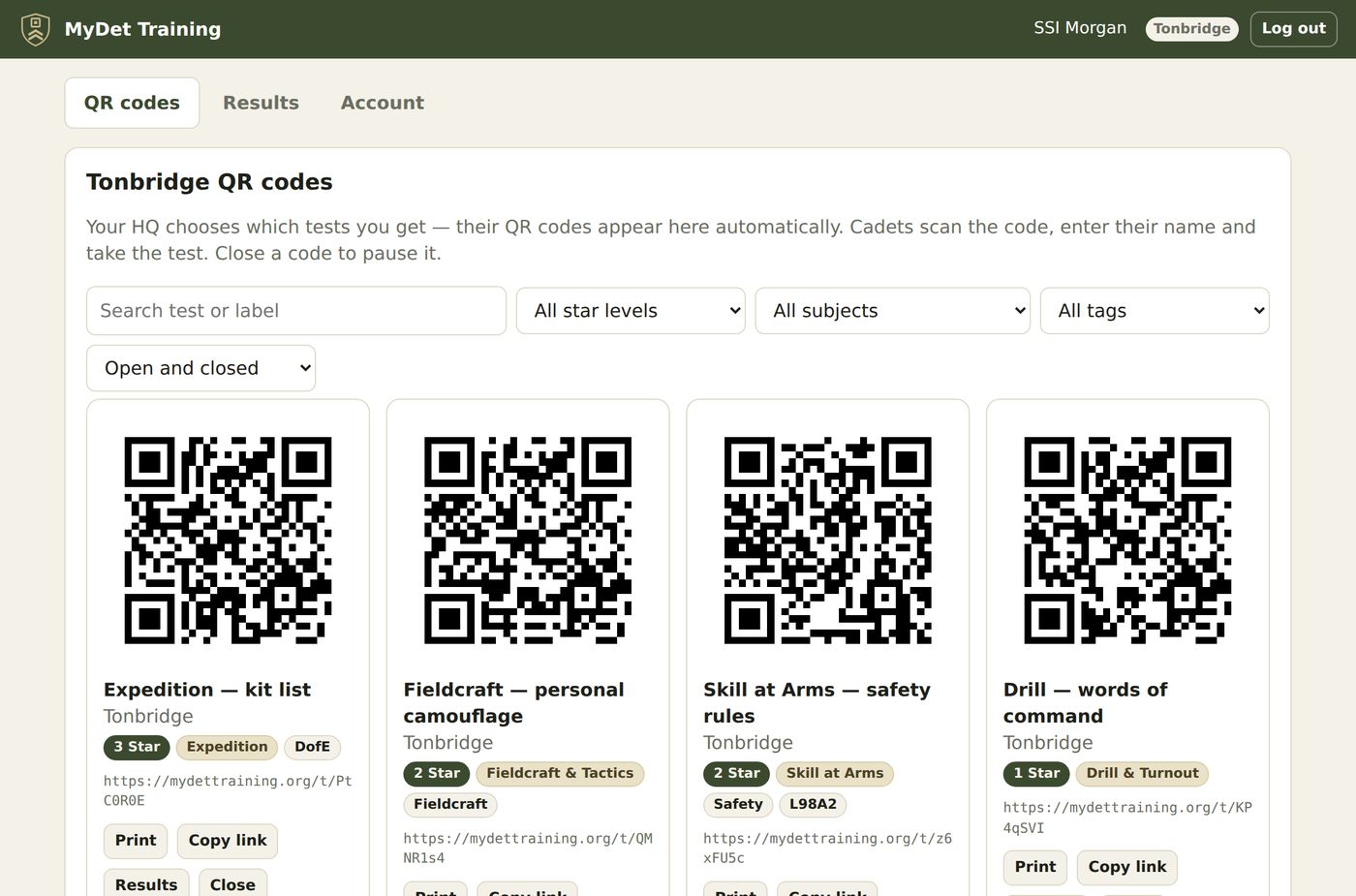
On each code
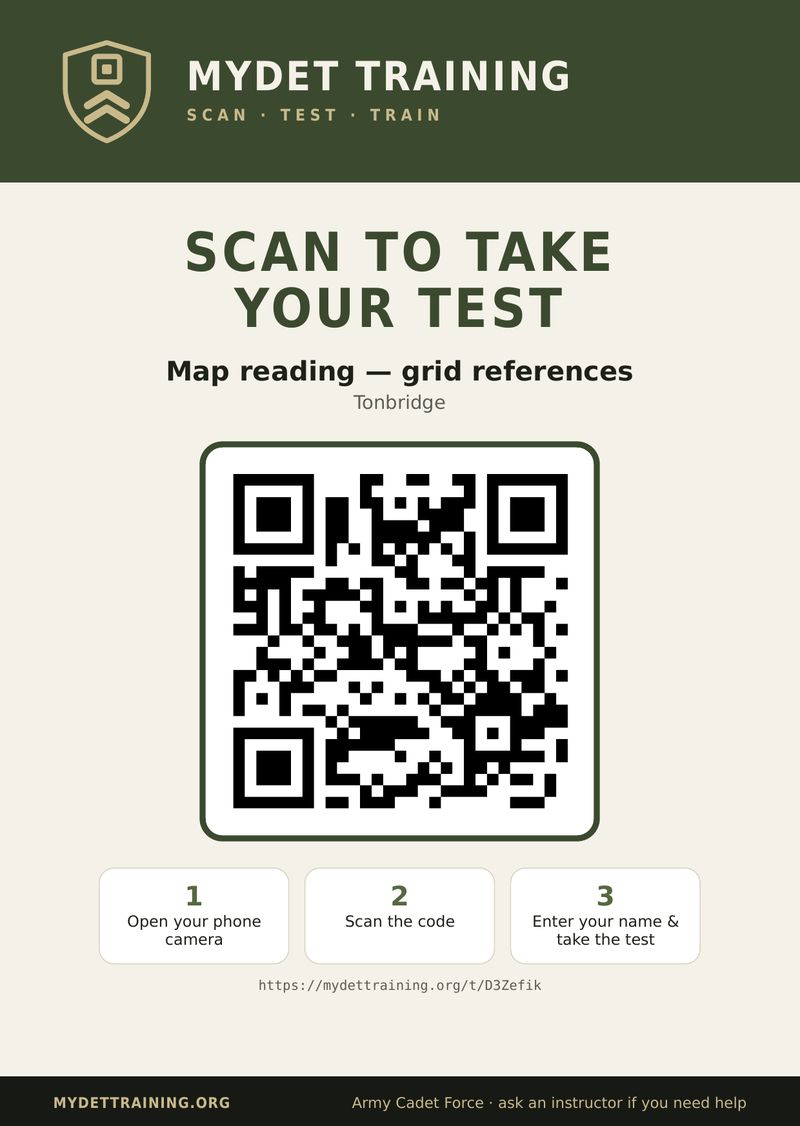
- Print — an A4 poster with the QR code and three simple steps for cadets.
- Copy link — paste it into a group chat or Teams instead.
- Results — just this test's results.
- Close — stops new answers (e.g. after the session). Open brings it back; the same code and posters keep working.
📱What cadets see
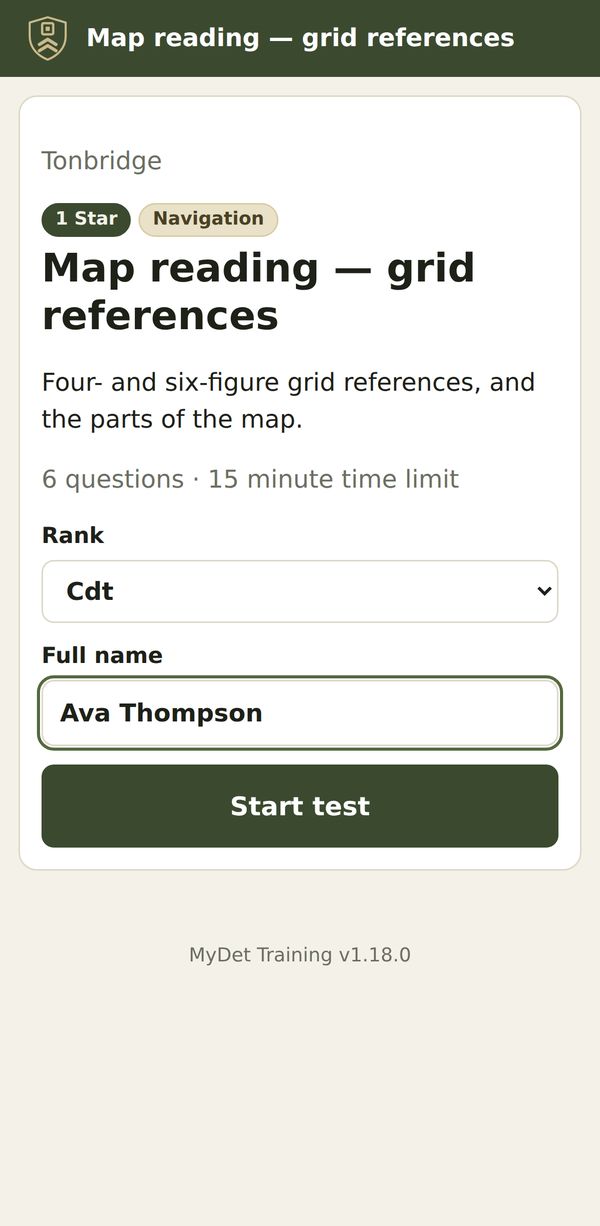
Cadets scan the code with their phone camera. There's no app to install and no account to make.
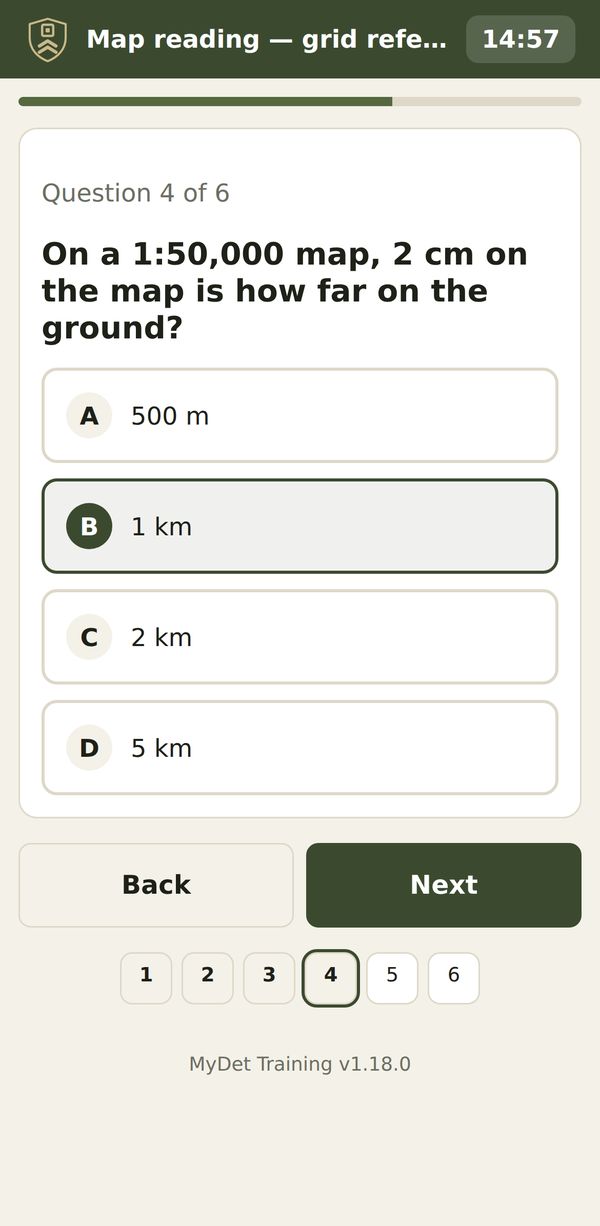
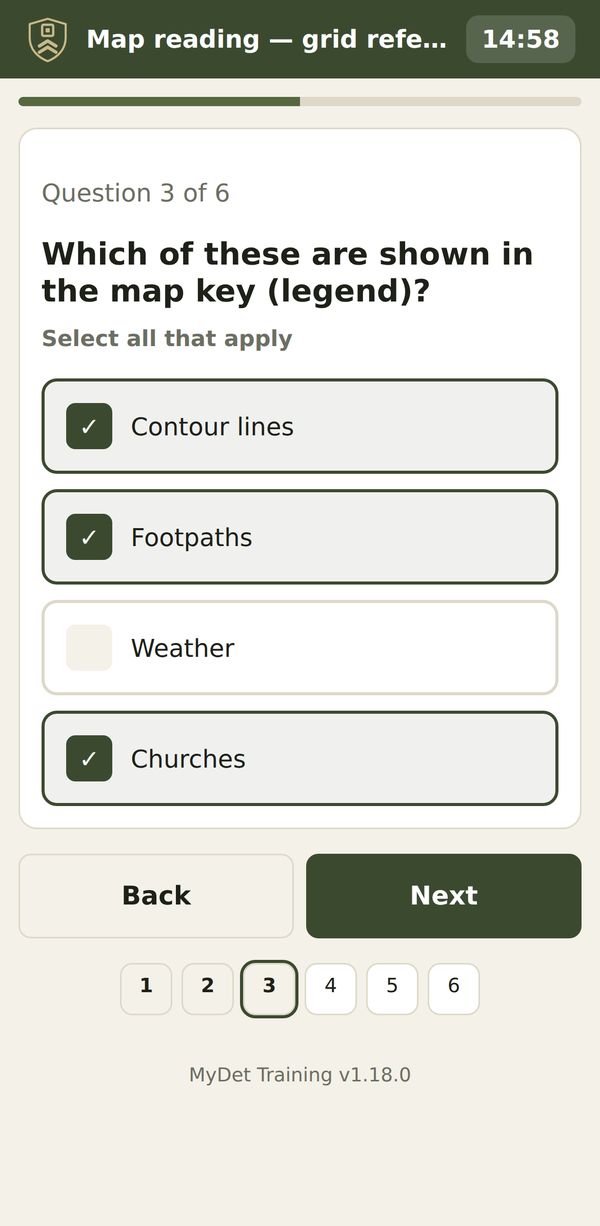
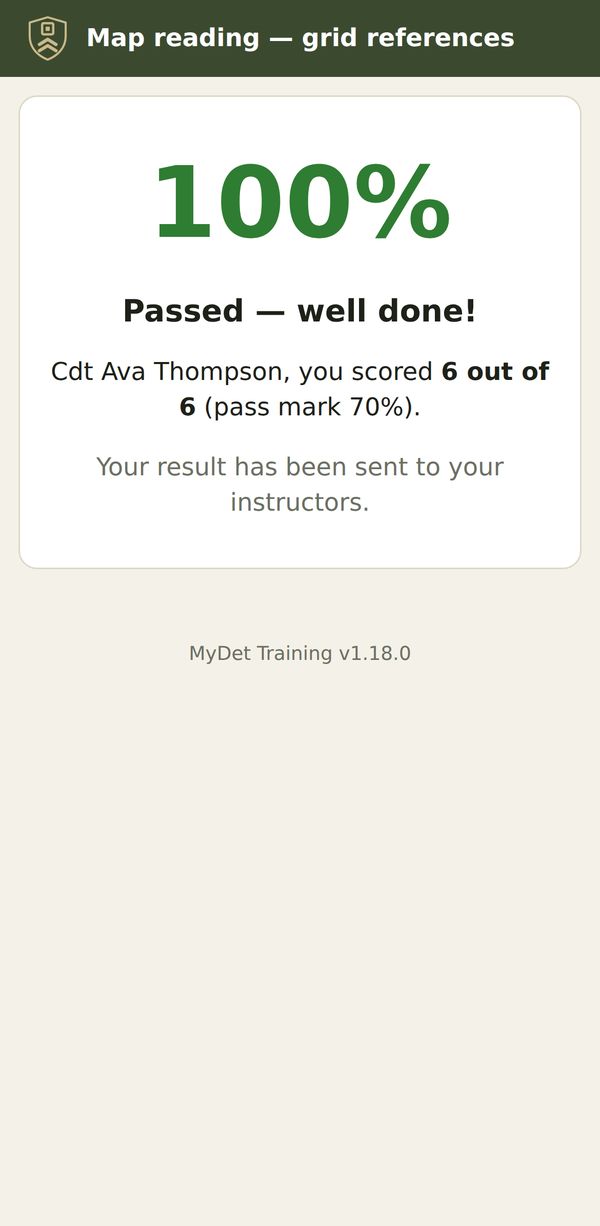
- They can move back and forth between questions; the numbers along the bottom show which they've answered.
- If the test has a time limit, a timer shows at the top and the test hands itself in when time runs out.
- Lost signal? Answers are kept on the phone and sent as soon as it can.
- The right answers are never sent to the phone, so they can't be looked up.
📊Results
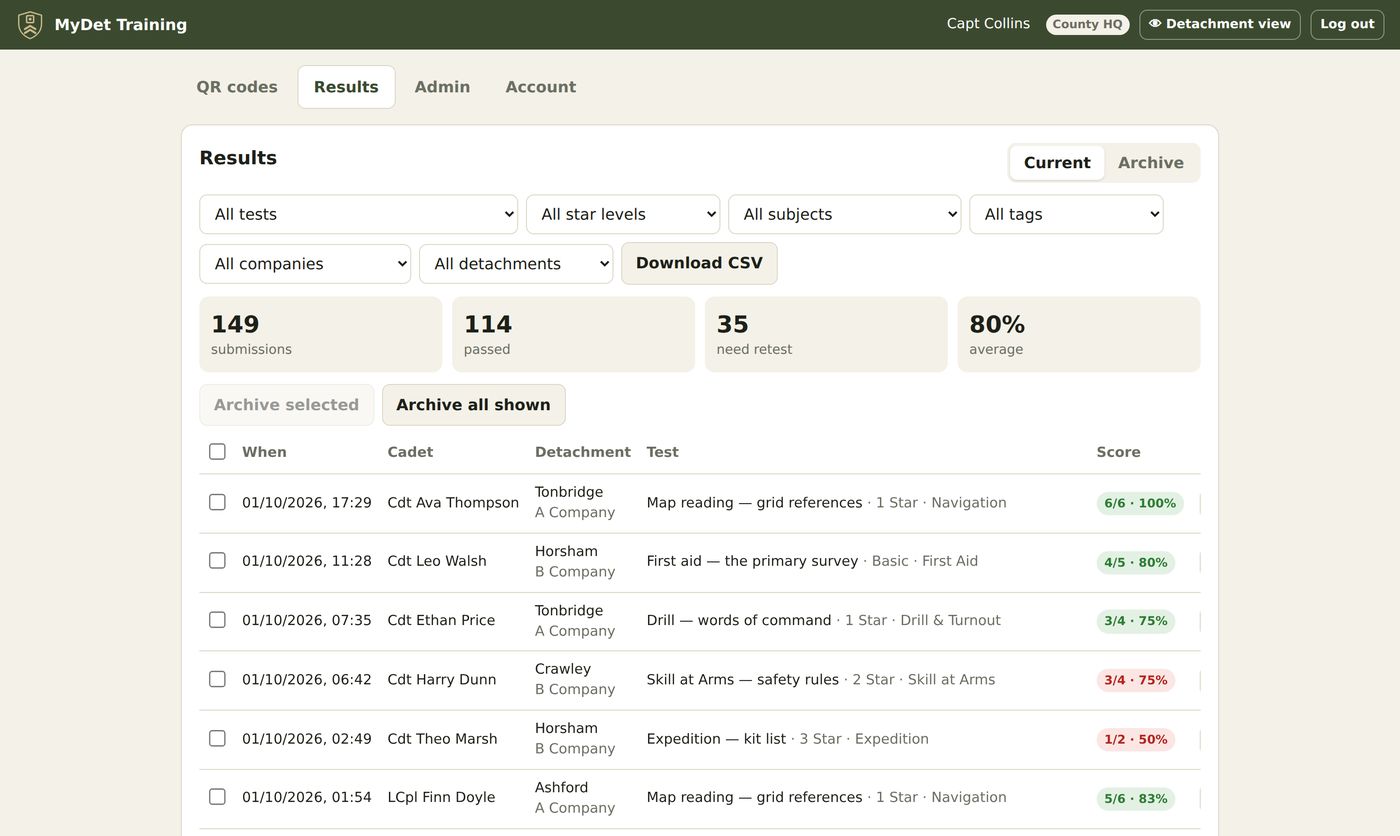
The Results tab lists every submission you're allowed to see, newest first, with the score and pass/fail.
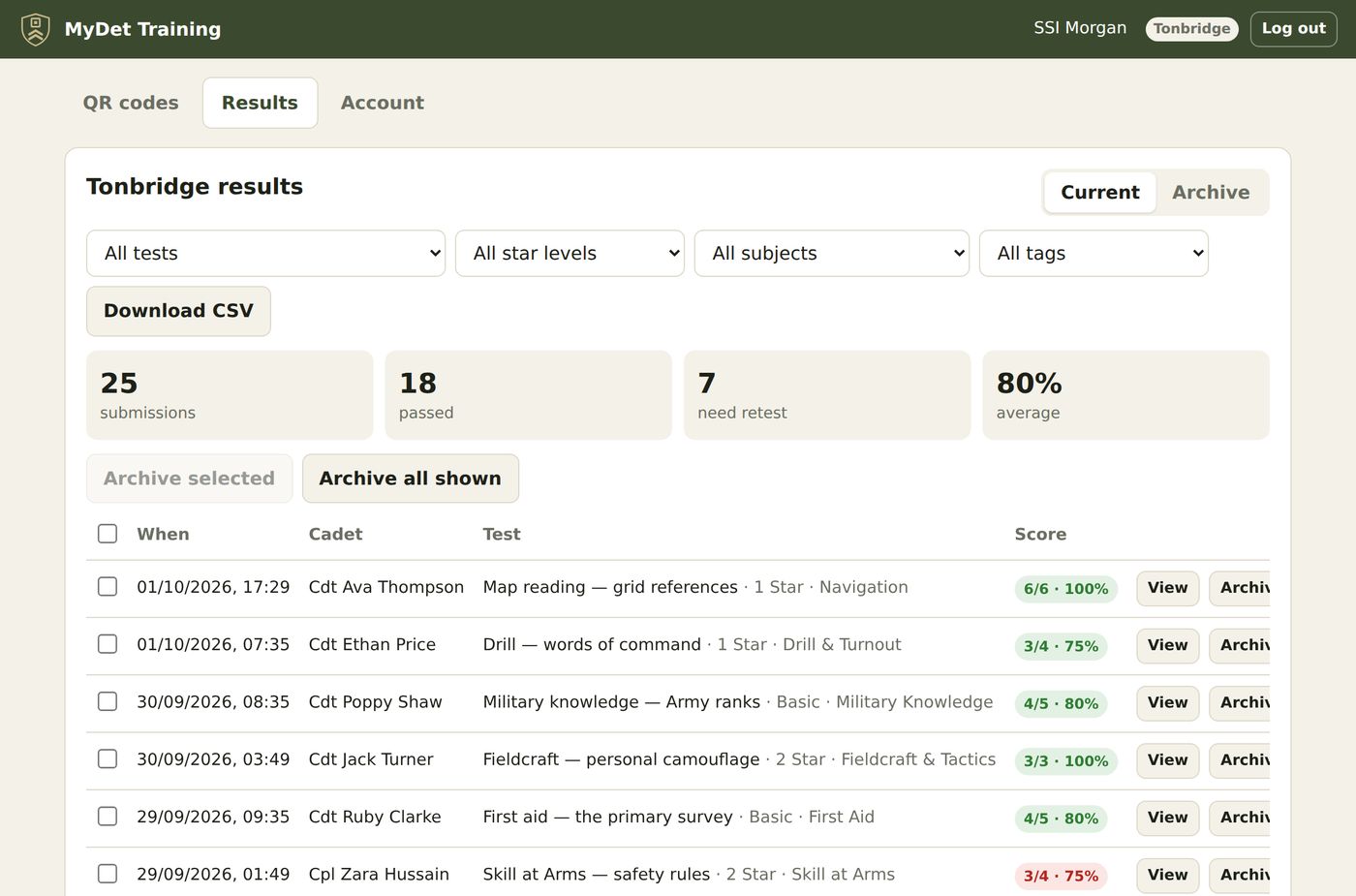
- Filter by test, star level, subject or tag — and HQs by company or detachment.
- View shows a cadet's answers question by question.
- Download CSV opens in Excel.
- Archive finished results to keep the list tidy. They stay viewable, downloadable and restorable under Archive, and keep a copy of the questions as they were, so editing the test later doesn't change them.
✏️Building a test
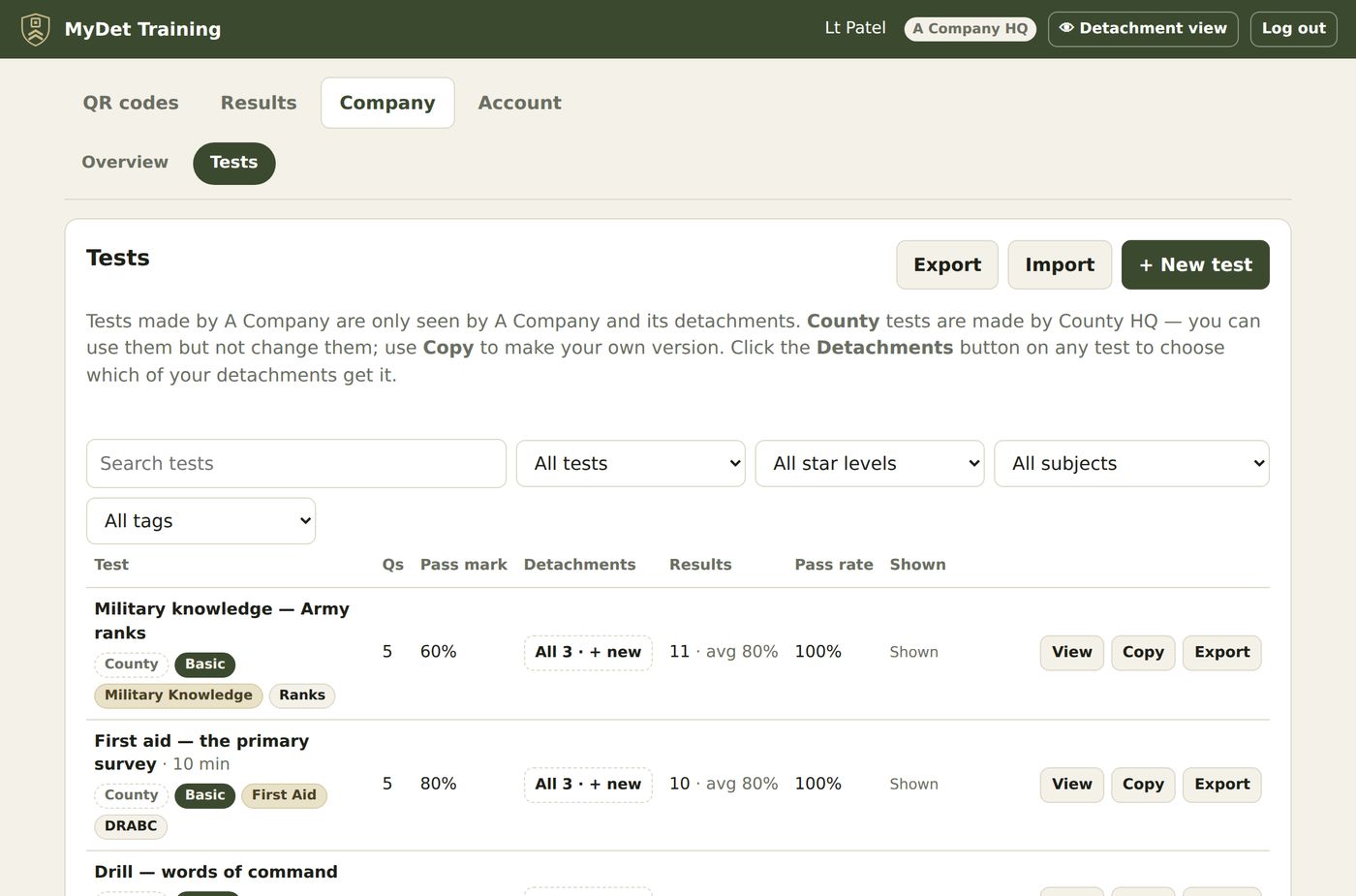
Open My County → Tests (Company HQ: My Company → Tests) from the home page and press + New test.
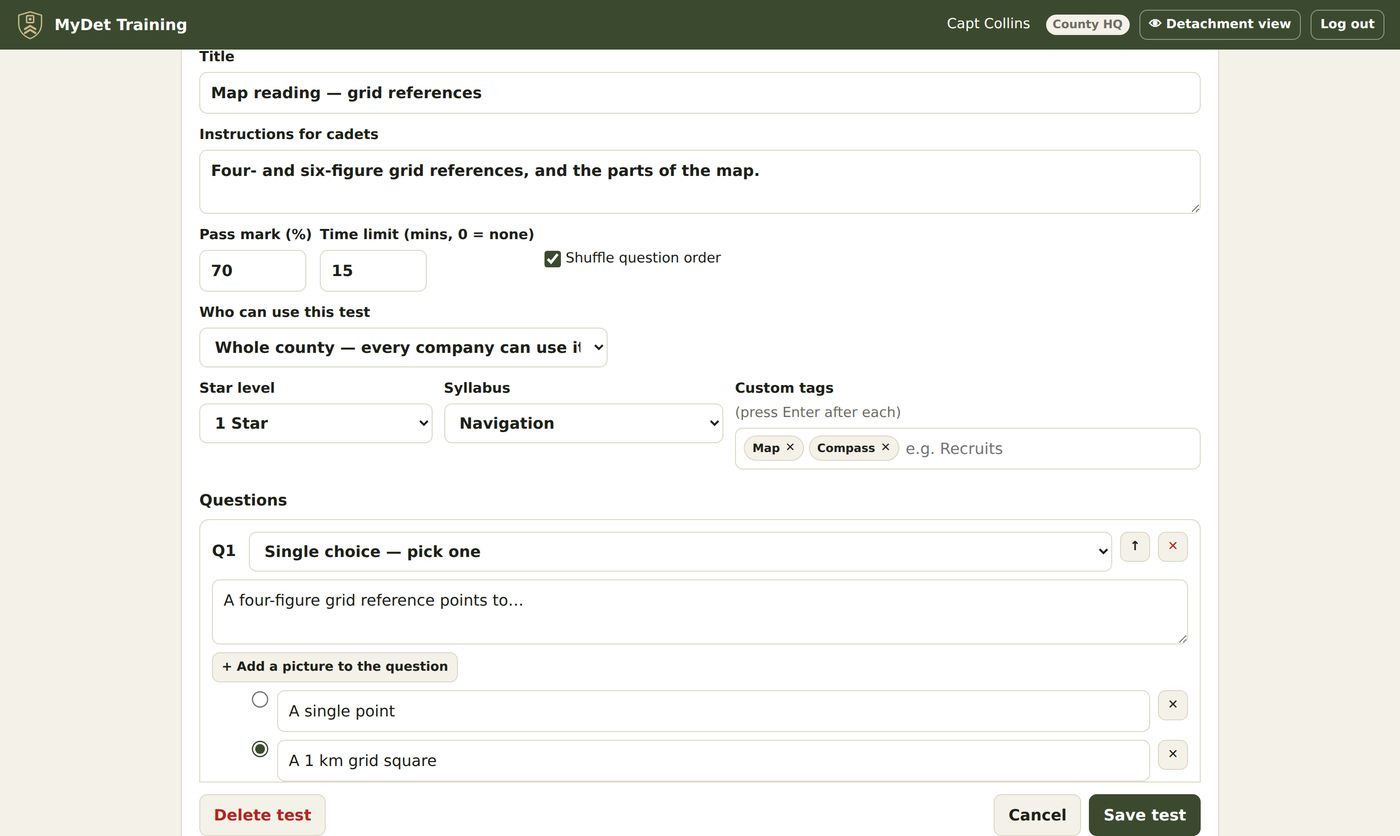
- Title and instructions — what cadets see before they start.
- Pass mark (%) and an optional time limit in minutes. Tick Shuffle to mix the question order for each cadet.
- Who can use this test (County HQ only) — the whole county, or one company.
- Star level, syllabus subject and custom tags — used for filters everywhere.
- Add the questions, then Save test.
Four kinds of question
| Kind | Cadet does | Marked right when |
|---|---|---|
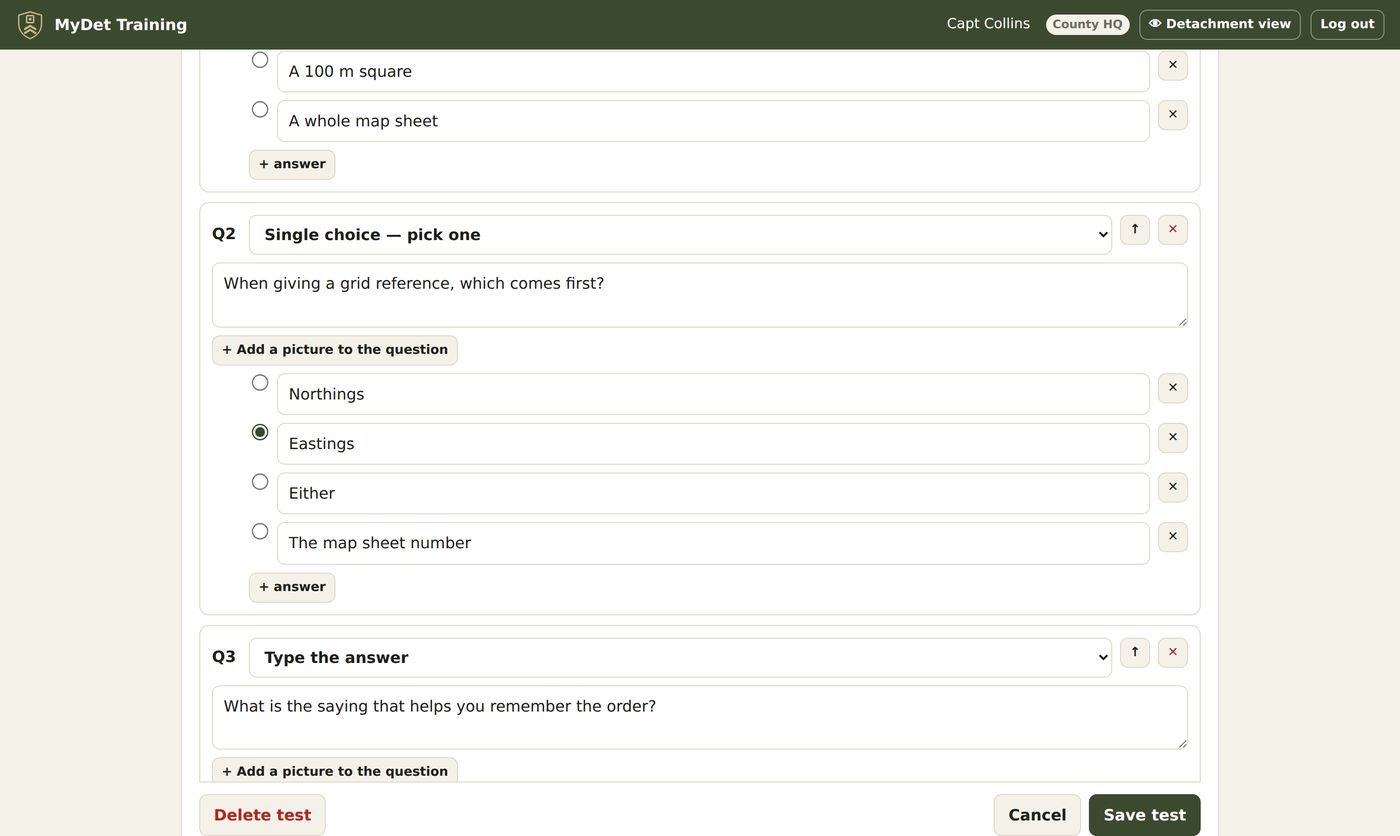
| Single choice | Picks one answer | They pick the right one |
| Multiple choice | Ticks all that apply | Every right answer and no wrong ones |
| Pick the picture | Taps a picture | They tap the right picture |
| Type the answer | Types a word or phrase | It matches any accepted answer — capitals, spaces and punctuation don't matter |
Any question can also have a picture (a map extract, a badge, a diagram) — 🖼 Add a picture to the question. Pictures come from the picture library, or upload a new one there and then.
Paste questions in bulk
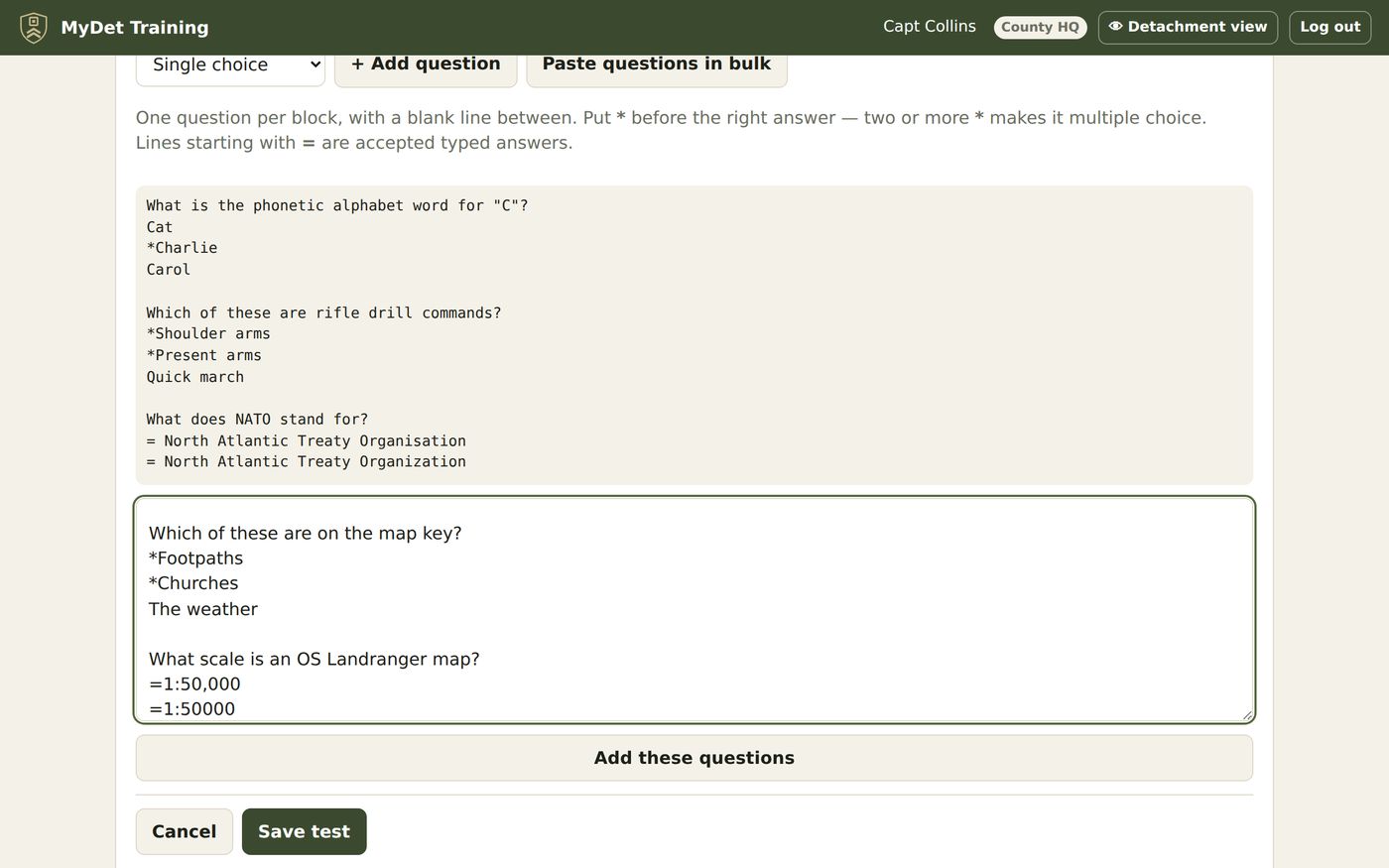
Faster for long tests. Press Paste questions in bulk and type or paste:
- One question per block, with a blank line between questions.
- Put * before the right answer. Two or more * makes it multiple choice.
- Lines starting with = are accepted typed answers.
Managing tests
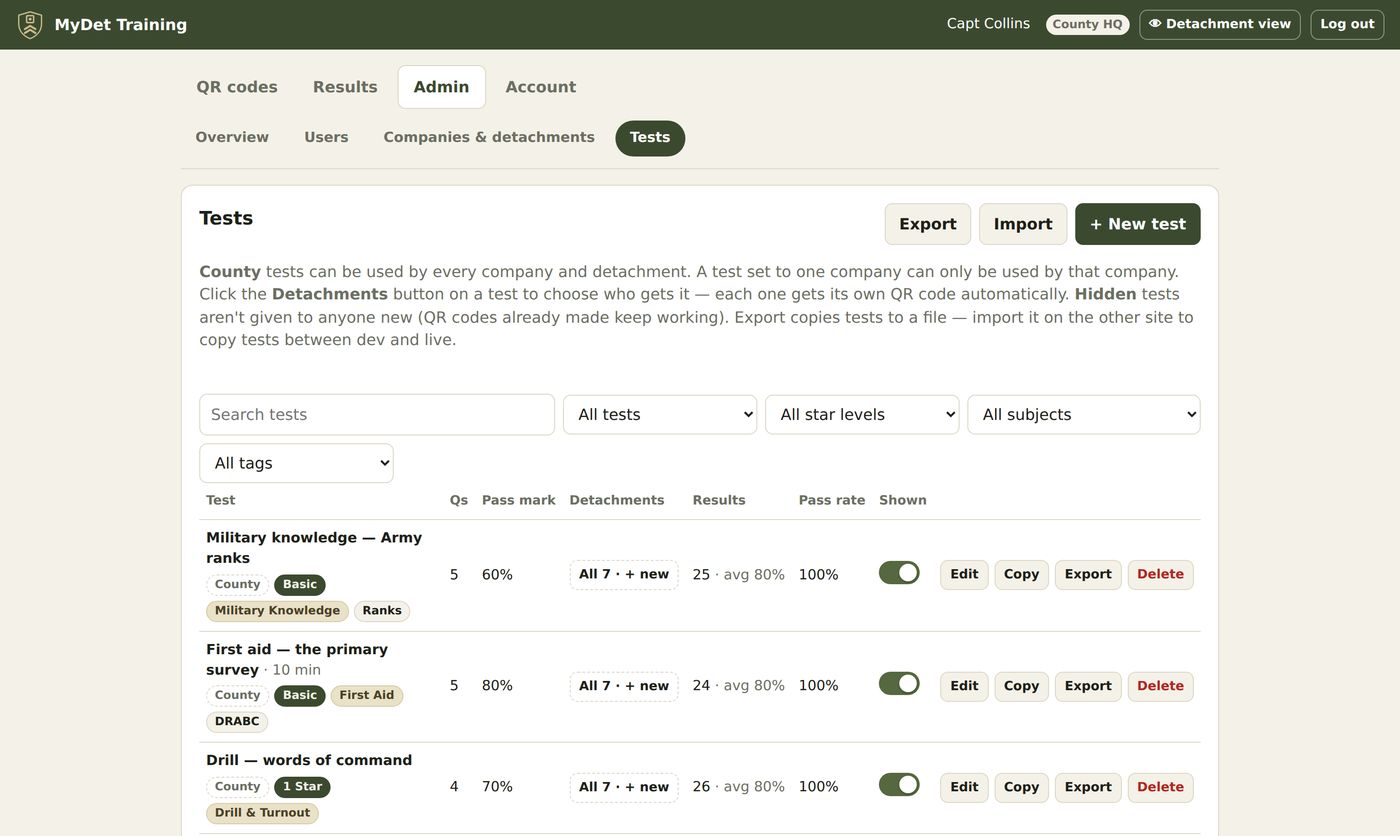
- Shown switch — hide a test to stop new codes being made for it. Existing codes keep working.
- Copy — duplicate a test. Company HQs use this to make their own version of a County test.
- Export / Import — move tests between sites (for example from the dev site to live).
- Categories (County HQ, bottom of the page) — rename or add star levels and syllabus subjects.
🖼The picture library
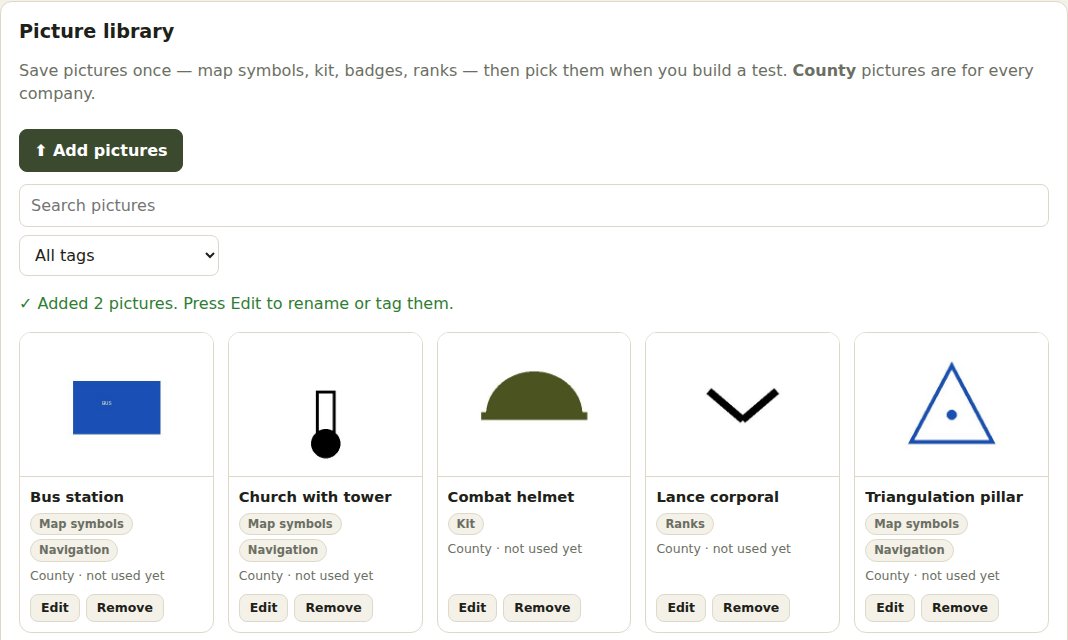
Keep the pictures you use again and again — map symbols, kit, ranks, badges — in one place, and pick them when you build a test instead of finding the file each time.
Adding pictures
- Open My County → Picture library (Company HQ: My Company → Picture library).
- Press ⬆ Add pictures and choose one or several — or drag them from your computer onto the page.
- Each is named from its file name. Press Edit to rename it and add tags (e.g. Map symbols, Navigation), so it's easy to find.
Using them in a test
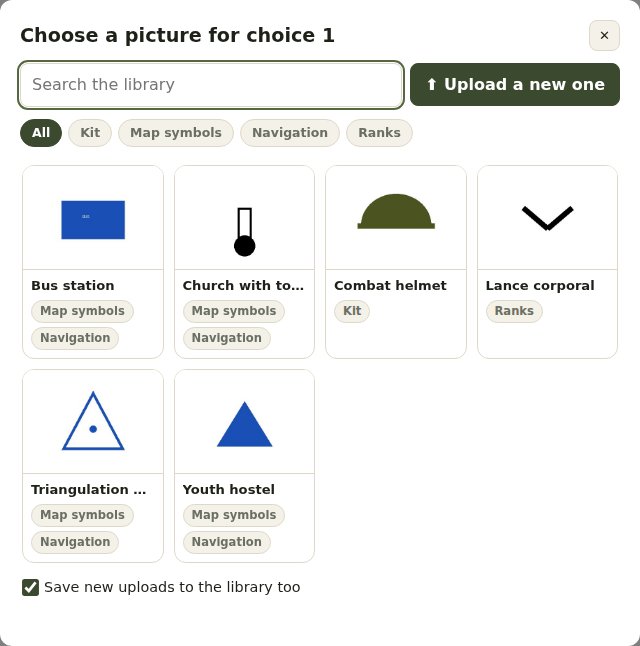
In the test editor, 🖼 Add picture (on a question or on a picture choice) opens the library. Search or tap a tag, then tap the picture.
Not in the library yet? Press ⬆ Upload a new one. With Save new uploads to the library too ticked, it's there next time. A picture already in a question has ☆ Save to library underneath.
Who sees which pictures
- County HQ pictures are for every company. County HQ can also make a picture just for one company (Edit → Who it's for).
- A Company HQ's pictures are for that company only. Company HQs can use County pictures but not change them.
- Remove takes a picture out of the library — tests that already use it keep it.
✅Choosing which detachments get a test
Click the Detachments button on a test (or Choose detachments on the QR codes tab), tick the detachments, and press Save. Each one gets its own QR code at once.
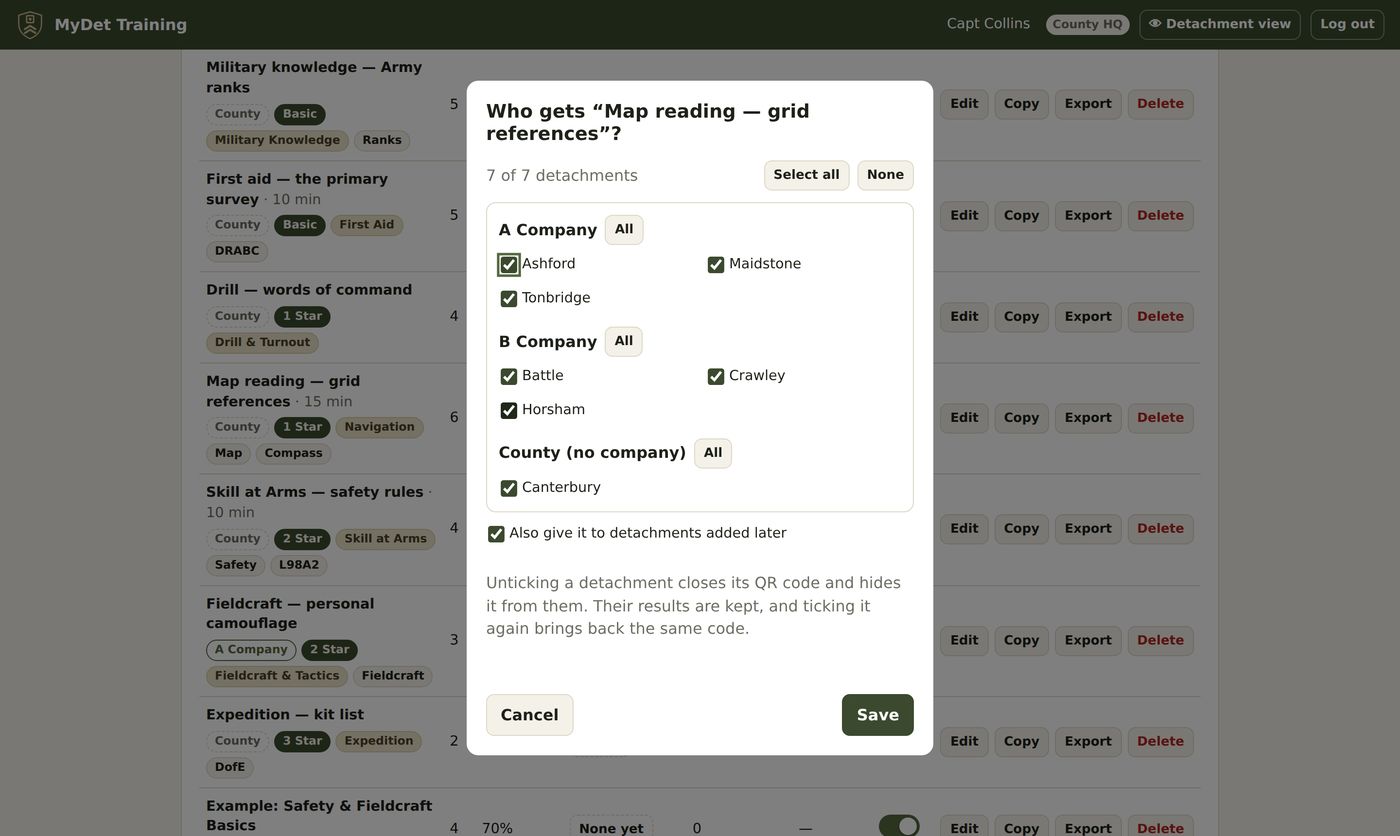
- Also give it to detachments added later — new detachments get the test (and their code) the day they're added.
- Untick to take it away: the code closes and disappears from that detachment. Their results are kept. Tick again and the same code comes back, so printed posters keep working.
- A Company HQ only sees its own detachments here, and can give County tests to them.
🗺Running the county
Overview
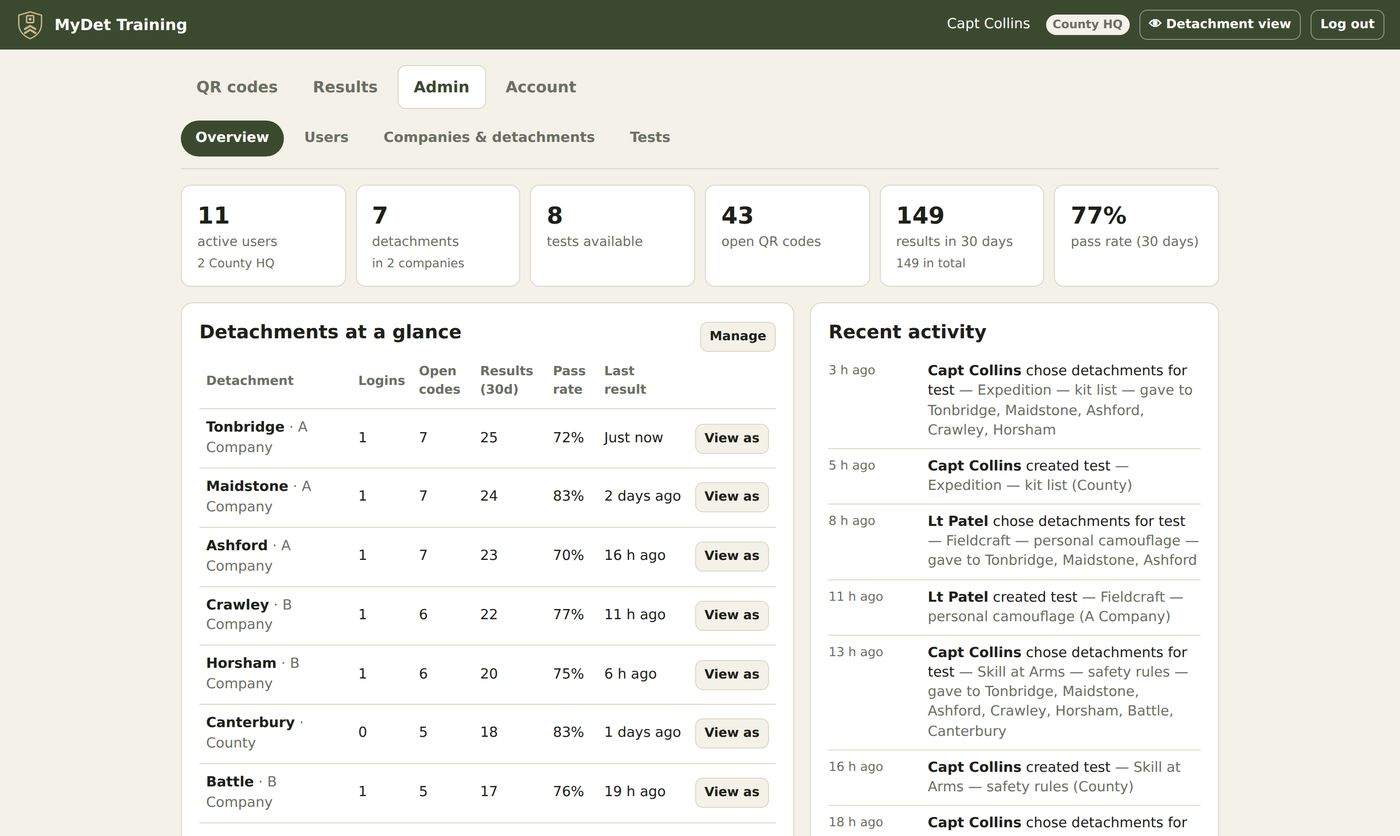
My County → Overview shows the whole county at a glance: active logins, detachments, tests, open QR codes, results this month and the pass rate, every detachment's numbers, and recent activity.
Companies and detachments
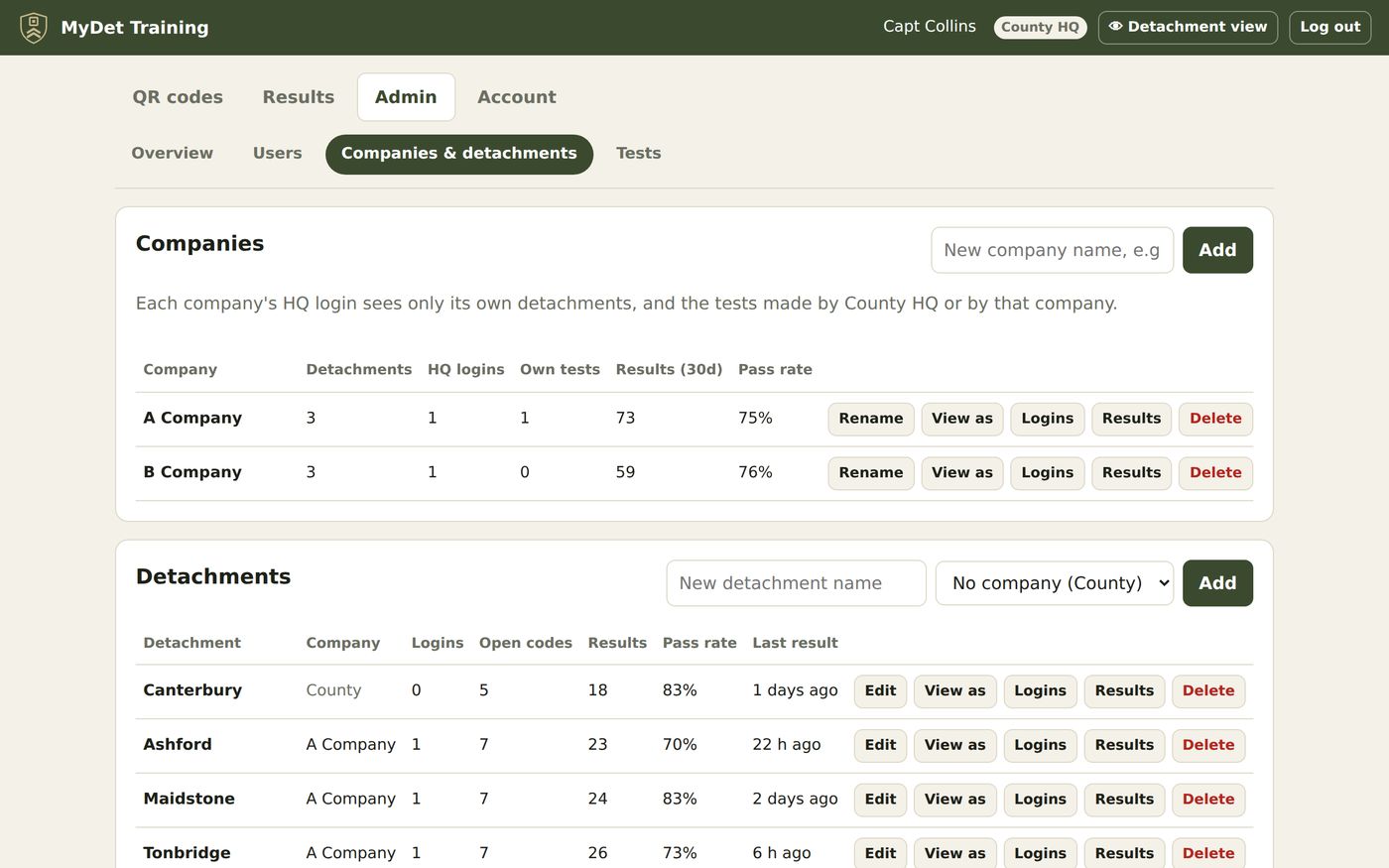
My County → Companies & detachments: add, rename or delete companies and detachments, and move a detachment to another company (its QR codes and results go with it). A detachment can also sit straight under County.
Detachment view
See MyDet exactly as a detachment sees it — handy when helping someone over the phone, or checking a poster before it goes up. Press 👁 Detachment view at the top (or View as on a detachment) and pick one. A blue bar shows whose view you're in; press Back to County HQ to return. Anything you do there is logged under your own name.
Activity log
Recent activity (on the Overview) records who created and changed tests, chose detachments, and changed logins and detachments — and when.
👥Logins & roles
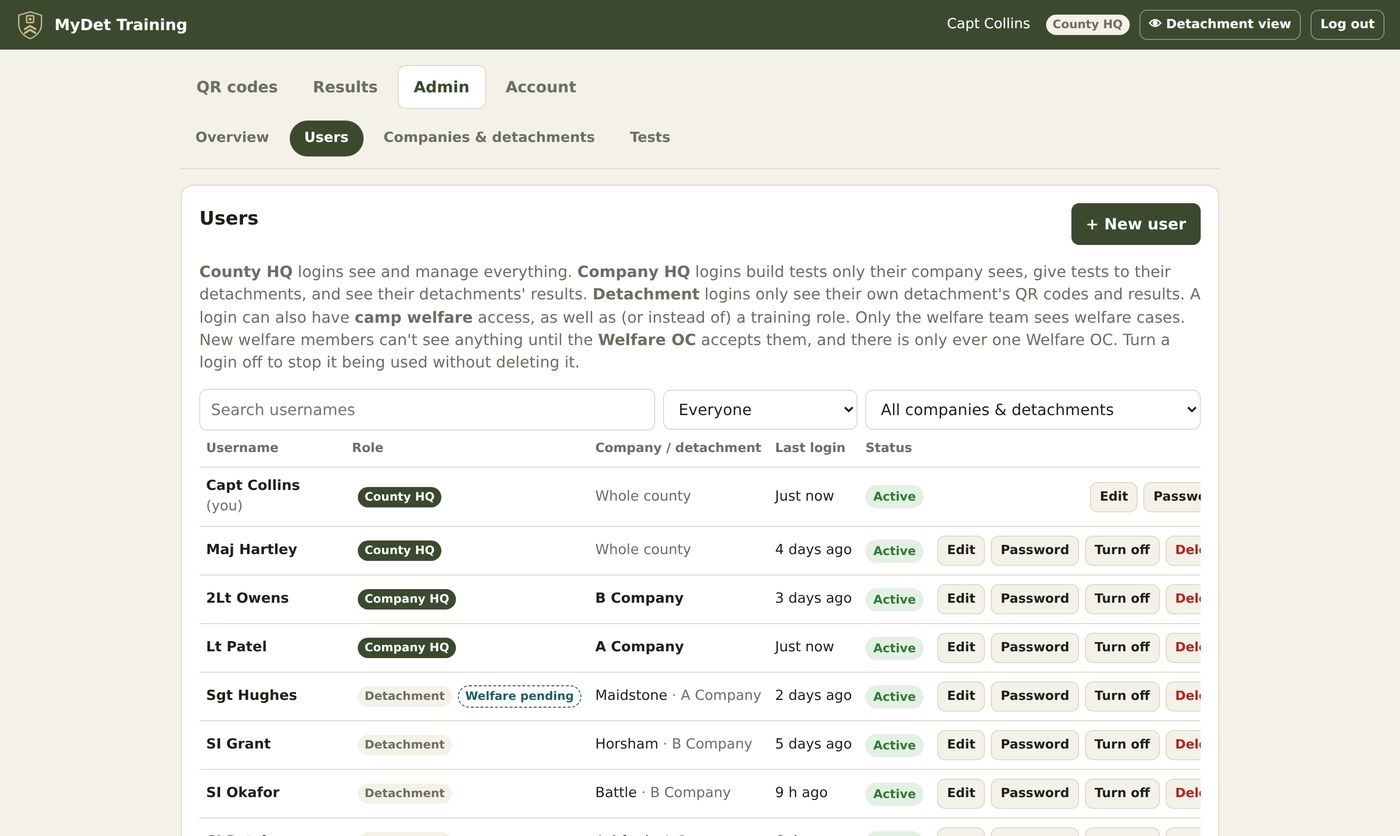
My County → Users lists every login. Each login has a My Test role and, separately, optional camp welfare access — one username and password for both.
Adding a login
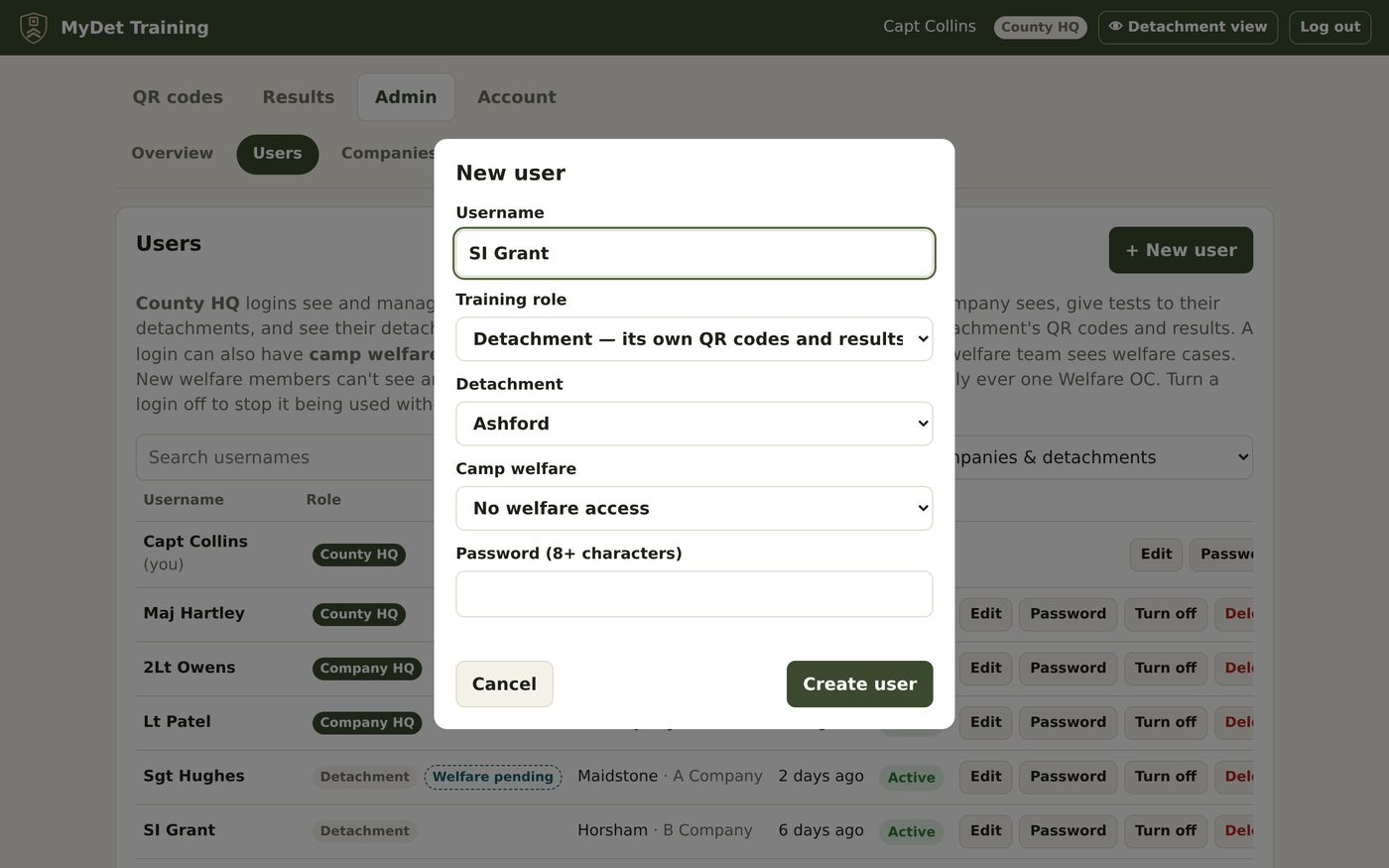
- Press + New user.
- Type a username (e.g. “SSI Morgan” or “Tonbridge”).
- Choose the My Test role — and the company or detachment for Company HQ and Detachment logins. Choose None for a welfare-only login.
- Choose camp welfare access if they're on the welfare team (see the My Welfare guide).
- Set a temporary password and give it to them. They'll choose their own at first login.
Looking after logins
- Edit — change the username, role, company/detachment or welfare access. If they have passkeys, you can tick Remove their passkeys (a lost phone).
- Password — set a new temporary password. They'll be logged out and must choose their own at next login.
- Turn off — stops the login working without deleting it. Delete removes it for good.
- The list shows 🔑 for logins with a passkey, and New password due for logins that haven't chosen their own password yet.
The maintainer
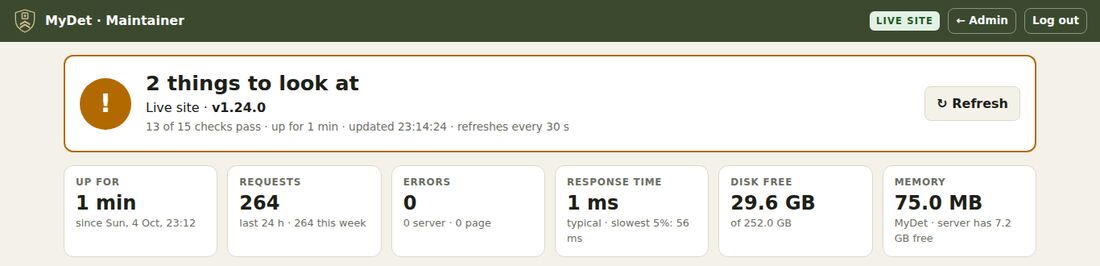
The person who looks after the site has a County HQ login with Maintainer ticked (in Edit). They get a 🛠 My Maintainer button at the top, which opens a dashboard showing how the site is doing: health checks, errors, traffic, updates, backups and the server. It never shows cadets' details, results or welfare cases.
- Needs attention lists anything to fix, with what to do — usually a command to copy.
- ⬇ Download a backup saves the encrypted data folder (asks for your password). The key is never in it — keep it in a password manager.
- Node.js — if the server needs a newer version, ⬆ Upgrade Node.js to 22 asks the server to do it. Both sites restart when it's done (a few seconds offline).
- Point a free uptime monitor at /api/health to get a text if the site goes down.
- Welfare test — check the welfare side is ready, run a self-test of the whole process with a made-up case, or send practice requests to the welfare team.
- Start fresh — clears what was made while trying MyDet out (logins, detachments, tests, results, welfare settings), keeping your own login. A backup is made first, so it can be undone.
- A daily backup is kept on the server for 14 days. Check proves a backup can be read without changing anything; Restore… puts the site back to how it was then. The data from just before is kept first, so a restore can be undone. You can also restore from a downloaded backup file.
❓Questions & fixes
A cadet says the QR code “isn't open”
The code has been closed. Open it on the QR codes tab (Open), or ask your HQ whether the test was taken away from your detachment.
A cadet's phone won't scan the code
Use the phone's own Camera app, hold it steady about 30 cm away, and make sure the poster is well lit. Or send them the link with Copy link.
I can't find a test my HQ said they'd give us
Check the filters aren't hiding it (set them back to “All”). If it still isn't there, your HQ hasn't ticked your detachment for it yet.
I want to change a County test
Company HQs can't change County tests — press Copy to make your own version, then give that to your detachments.
I forgot my password
Ask County HQ to reset it from My County → Users. If you've added a passkey, you can still log in with that.
“Too many attempts. Wait 10 minutes.”
After 8 wrong passwords, that device has to wait 10 minutes. Other people aren't affected.
The page says the site has been updated
Press Reload now. Anything you were typing is kept.
Where can I see what's changed?
The What's new page, linked at the bottom of every page.
Nothing in this guide matches that. Try fewer or different words.